

IDE and client configuration#
PyMechanical-MCP works with any MCP-compatible client. This page covers common integrations: Claude Code, Visual Studio Code, and Claude Desktop.
Prerequisite: install uv and Git#
Install uv, which provides uvx, and Git
before using the uvx examples on this page. Git is required because uvx
downloads and runs PyMechanical-MCP directly from this repository without
cloning it. Follow the uv installation instructions.
For example, on Windows:
powershell -ExecutionPolicy ByPass -c "irm https://astral.sh/uv/install.ps1 | iex"
On macOS and Linux:
curl -LsSf https://astral.sh/uv/install.sh | sh
Claude Code#
Claude Code is Anthropic’s code editor with built-in MCP support. You can add PyMechanical-MCP using the command-line tool.
Set up for a specific project (recommended)#
Configure PyMechanical-MCP for a specific project:
cd my-project
claude mcp add --transport stdio pymechanical-mcp -- \
  uvx --index-strategy unsafe-best-match \
  --from git+https://github.com/ansys/pymechanical-mcp \
  ansys-mechanical-mcp
Advantages:
Provides project-specific configuration.
Enables sharing with team members through version control.
Simplifies maintenance of multiple configurations per project.
Set up globally#
Configure PyMechanical-MCP for all your Claude Code projects:
claude mcp add --transport stdio --scope user pymechanical-mcp -- \
  uvx --index-strategy unsafe-best-match \
  --from git+https://github.com/ansys/pymechanical-mcp \
  ansys-mechanical-mcp
Advantages:
Makes PyMechanical-MCP available across all your Claude Code projects.
Requires no per-project configuration.
Works well for personal development workflows.
Key features:
Uses STDIO transport by default (local integration).
Uses uvx for automatic fetching from GitHub.
Requires no manual management of configuration files.
For more information, see Installing MCP servers in the Claude Code documentation.
Visual Studio Code#
Visual Studio Code integrates MCP servers through the Copilot extension using a JSON configuration file.
Start quickly from GitHub#
Add this to .vscode/mcp.json in your project directory:
{
  "servers": {
    "pymechanical-mcp": {
      "type": "stdio",
      "command": "uvx",
      "args": [
        "--index-strategy", "unsafe-best-match",
        "--from", "git+https://github.com/ansys/pymechanical-mcp",
        "ansys-mechanical-mcp"
      ]
    }
  }
}
Features:
Uses STDIO transport (recommended for local development).
Fetches the latest version from GitHub automatically.
Requires uvx to be installed on your system.
Set up for local development#
Use this configuration when working from a local clone of the repository:
{
  "servers": {
    "pymechanical-mcp": {
      "type": "stdio",
      "command": ".venv/Scripts/python",
      "args": ["-m", "ansys.mechanical.mcp"],
      "env": {
        "FASTMCP_LOG_LEVEL": "DEBUG"
      }
    }
  }
}
Use .venv/bin/python on Linux/macOS.
Features:
Uses a local Python virtual environment.
Enables debug logging for troubleshooting.
Requires
pip install -e ".[dev]"in your virtual environment.
Configure HTTP transport#
For remote access or server-style deployments, start the server separately, and then point Visual Studio Code at it:
ansys-mechanical-mcp --transport http --http-host 127.0.0.1 --http-port 8080
{
  "servers": {
    "pymechanical-mcp": {
      "type": "http",
      "url": "http://127.0.0.1:8080/mcp"
    }
  }
}
Enable MCP in Visual Studio Code#
Open Visual Studio Code settings (
Ctrl+,orCmd+,).Search for
MCPorCopilot MCP.Enable the settings that allow Copilot to use MCP servers:
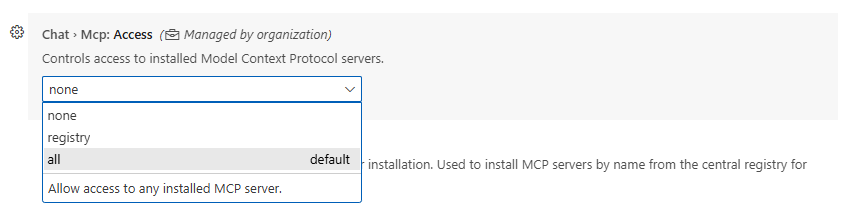
Restart Visual Studio Code for the changes to take effect.
For more information, see Add and manage MCP servers in VS Code in the Visual Studio Code documentation.
Claude Desktop#
Claude Desktop is Anthropic’s macOS desktop app with full MCP support.
Edit the ~/Library/Application Support/Claude/claude_desktop_config.json file:
{
  "mcpServers": {
    "pymechanical-mcp": {
      "command": "uvx",
      "args": [
        "--index-strategy", "unsafe-best-match",
        "--from", "git+https://github.com/ansys/pymechanical-mcp",
        "ansys-mechanical-mcp"
      ],
      "description": "MCP server for Ansys Mechanical through PyMechanical",
      "version": "0.1.0",
      "language": "python"
    }
  }
}
Features:
Provides automatic server detection and initialization.
Uses STDIO transport by default.
Supports full MCP tool discovery.
For more information, see Build an MCP server in the Model Context Protocol documentation.
General MCP clients#
Any MCP-compatible client can use PyMechanical-MCP. The basic requirement is STDIO or HTTP transport support.
STDIO transport (recommended)#
For local clients on the same machine:
ansys-mechanical-mcp
HTTP transport#
For remote clients or web-based clients, start the server:
# Start the server with HTTP
ansys-mechanical-mcp --transport http --http-host 0.0.0.0 --http-port 8080

# With CORS origins for web clients
ansys-mechanical-mcp --transport http --cors-origins "http://localhost:3000"
Configure your client to connect to
http://[server-ip]:8080/mcp.
Claude Code versus Visual Studio Code#
Feature |
Claude Code |
Visual Studio Code |
|---|---|---|
Configuration method |
Command-line tool command ( |
JSON file ( |
Setup level |
Project or global ( |
Project-level only |
Manual configuration |
None (auto-managed by command-line tool) |
Manual JSON editing required |
Transport support |
STDIO (default) |
STDIO or HTTP |
Integration |
Built-in MCP support |
Requires Copilot extension |
Team sharing |
With project configuration files |
With |
Advanced configuration#
Connect to a remote Mechanical instance#
Pass --connect-on-startup with the host and port to auto-connect at startup.
Visual Studio Code:
Edit the .vscode/mcp.json file:
{
  "servers": {
    "pymechanical-mcp": {
      "type": "stdio",
      "command": "uvx",
      "args": [
        "--index-strategy", "unsafe-best-match",
        "--from", "git+https://github.com/ansys/pymechanical-mcp",
        "ansys-mechanical-mcp",
        "--connect-on-startup",
        "--ip", "192.168.1.100",
        "--port", "10000"
      ]
    }
  }
}
Claude Code:
claude mcp add --transport stdio pymechanical-mcp -- \
  uvx --index-strategy unsafe-best-match \
  --from git+https://github.com/ansys/pymechanical-mcp \
  ansys-mechanical-mcp \
  --connect-on-startup --ip 192.168.1.100 --port 10000
Enable debug logging#
Visual Studio Code
Edit the .vscode/mcp.json file:
{
  "servers": {
    "pymechanical-mcp": {
      "type": "stdio",
      "command": "uvx",
      "args": [
        "--index-strategy", "unsafe-best-match",
        "--from", "git+https://github.com/ansys/pymechanical-mcp",
        "ansys-mechanical-mcp"
      ],
      "env": {
        "FASTMCP_LOG_LEVEL": "DEBUG"
      }
    }
  }
}
Command line:
FASTMCP_LOG_LEVEL=DEBUG ansys-mechanical-mcp
Integrate with Docker#
For containerized deployments with HTTP transport, start the container:
docker run -p 8080:8080 pymechanical-mcp --transport http
Configure your Visual Studio Code client:
{
  "servers": {
    "pymechanical-mcp": {
      "type": "http",
      "url": "http://localhost:8080/mcp"
    }
  }
}
For information about Docker deployment options, see Docker deployment.
Next steps#
Review available capabilities in Tools and capabilities.
Follow workflow recommendations in Best practices.
For containerized deployment, see Docker deployment.
For a practical first workflow, see Quick start.